Troubleshooting
AI Studio text to speech not working? Start here
Speech generation fails in a small number of ways, and the failure tells you which one. Read the error before you change three settings — most reports clear at the first or second step below.
Read the error before you change anything
Speech generation fails in a small number of ways, and the failure usually tells you which way. A silent button is not the same as an error message, and an error about quota is not the same as an error about the script. Changing three settings at once is how a five-minute fix becomes an afternoon.
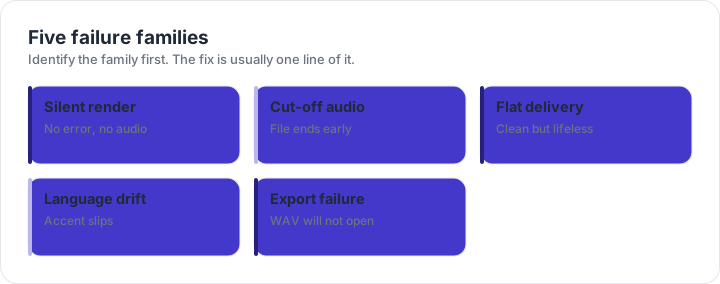
Nine fixes, in the order worth trying
| Symptom | Likely cause | Fix |
|---|---|---|
| Generate button does nothing | Empty, oversized or whitespace-only transcript | Trim to under the input limit and retry |
| Error mentions quota or rate | Daily cap or per-minute limit reached | Batch the work, retry the failed item later |
| Audio stops mid-sentence | Output token ceiling reached | Split at a section break and generate again |
| Model speaks the stage directions | Notes inside the transcript | Move direction to the style field |
| Two speakers blur together | Briefs describe the same delivery | Contrast pace and register, or split the scene |
| Audio starts with a click | Clip starts on a hard consonant | Add a short lead-in word or trim the first few frames |
| Voice sounds like a different person | Saved voice aged out or key expired | Recreate the voice and note its save date |
| Download is silent or truncated | Interrupted transfer | Re-download; verify the file plays in a browser |
| Everything sounds flat | No style brief, or a brief about the audience | Name pace and energy explicitly, then regenerate |
Work down the table rather than across it. The first three rows account for most reports, and all three are configuration rather than model behaviour. If you have checked them and the render still fails, the problem is more likely the session or the account than the script.
The reset order that clears a stuck session
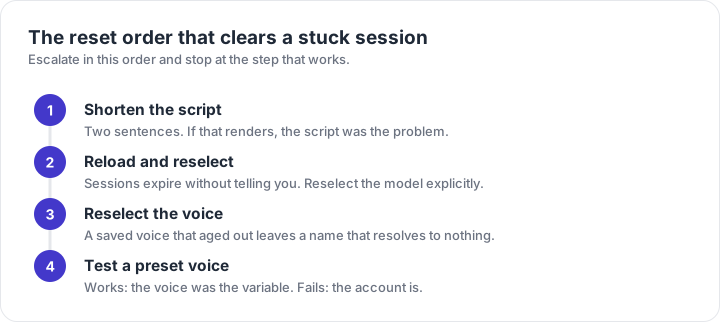
- Shorten the transcript to two sentences. If that renders, the script was the problem and you now know it is a length or content issue.
- Reload the page and reselect the model. Sessions expire without saying so.
- Reselect the voice explicitly instead of relying on the value already in the field — a saved voice that aged out leaves a name that no longer resolves.
- Generate one short test line on a different preset voice. If that works, the voice was the variable; if it also fails, the account is.
The two failure modes people misdiagnose
The first is length. A script that is too long does not always produce an error: it can produce audio that simply stops, which reads as a model problem and is really a budget problem. If the last word of your file is not the last word of your script, split the script.
The second is the second voice. In a two-speaker scene, drift is gradual and easy to miss in a short audition. Generate the final thirty seconds on their own and listen to them next to the first thirty; if the timbres have converged, split the scene rather than regenerating the whole thing and hoping.
When the problem is not on your side
Some failures are upstream: a model deprecation, a regional outage, a preview model whose behaviour changed between sessions. The tell is that a script and a voice which worked yesterday fail today without any change on your part. In that case, stop changing settings. Switch to a different model generation, confirm with a one-line test, and note the date — a behaviour change is information worth keeping.
Frequently asked questions
Why does Generate do nothing?
The three most common causes are an empty or oversized transcript, a voice name that does not exist in your workspace, and a session that has quietly expired. Check the script length and the voice name first, then reload the page — a stale session usually looks like a button that does nothing rather than an error message.
Why is the audio cut off at the end?
Usually the output budget, not the model. A long script can exceed the output token ceiling and the render stops where the budget runs out. Split the script into sections and generate them separately; the 64K output allowance is large but not infinite.
Why does the model read my brackets out loud?
Because the transcript is treated as a verbatim script in the current generation. Anything in the text field is meant to be spoken. Move stage directions into the style field, and keep only the six recognised inline tags in the transcript.
Why does the second speaker sound like the first?
The briefs are too similar. Contrast pace and register, not just adjectives: one speaker faster and brighter, the other slower and drier. If that still fails, split the scene into two single-speaker renders and edit them together.
Why is the voice different from last week?
A preset voice is stable; a saved custom voice has a one-year lifetime and a stateless voice key expires after seven days. If neither applies, check whether the model changed underneath you — a project pinned to a preview can shift between sessions.
The WAV will not open in my editor. What now?
Confirm the download finished: a truncated file has a valid header but a short data chunk, and some editors refuse it. Re-download, then open the copy in a browser tab to see whether the file plays before you blame the editor.