Independent guides
Google AI Studio text to speech, without the guesswork
Pick a Gemini TTS model, audition the 30 studio voices, write a style brief that survives a long script, and fix the failures that stop a render. Every guide here is task-first: the steps, the settings, and what to do when the audio comes back wrong.
Free to read. Nothing to sign up for here — you only need a Google account for AI Studio itself.
Text to speech is a two-minute job once you start in the right place
Most people lose their first hour in AI Studio to the same three things: they write a script meant for the eye instead of the ear, they pick a voice by name and hope, and they paste acting notes into the transcript where the model reads them out loud. None of those are hard problems. They are just order-of-operations problems, and the guides below fix them in the order you will hit them.
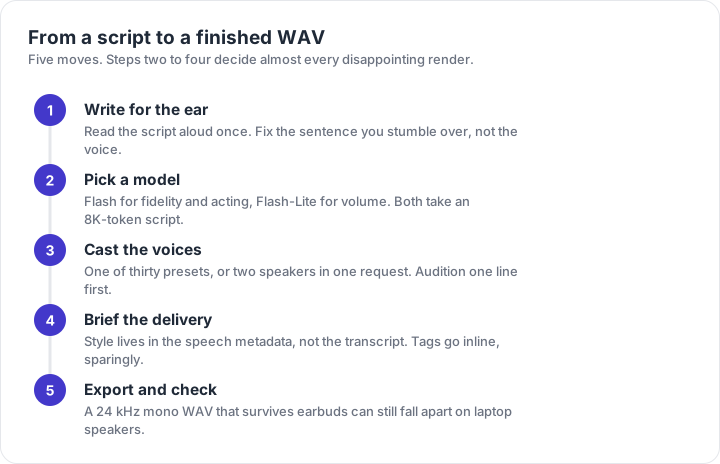
The current generation ships four TTS models: gemini-3.8-flash-tts, gemini-3.8-flash-lite-tts, and two previews from earlier generations. They share the same script format, the same 30 preset voices and the same two-speaker ceiling, so what you learn on one transfers to the others. What changes is how much acting the model will do, how fast it returns, and how much a long render costs you.
Treat the waveform like a performance, not a file conversion. A read that is technically clean and emotionally flat is the most common outcome of a first attempt, and the cause is almost never the voice. It is a script written in sentences that no one would say out loud, handed to a model with no instruction about pace, mood or accent.
Choose the page that matches your problem
| If you are trying to | Start here | What you get |
|---|---|---|
| Make your first clip end to end | The AI Studio tutorial | The click order, each control explained, and the export step |
| Pick a voice that fits the job | The 30-voice reference | Tone notes, use cases and three proven two-voice pairings |
| Stop a read sounding flat | Style prompts and tags | Copy-ready briefs, tag placement rules and the failure modes |
| Decide between the four models | The model comparison | Fidelity, latency, status and the jobs each model handles |
| Plan around the free ceiling | Free limits explained | What a Google account covers and how to keep a session inside the caps |
| Fix a render that failed | Troubleshooting | Symptom, cause and the exact setting that clears it |
What a usable result sounds like
A finished TTS clip has four properties, and it is worth checking all four before you call a render done. First, the first second: does it start cleanly, or does it clip the opening consonant? Second, the breath: natural speech has air in it, and a read with zero breaths sounds synthetic even when the pronunciation is perfect. Third, the ending: a sentence that trails off into a rising question mark is the classic sign of a script that ended mid-thought. Fourth, the loudness: check on a phone speaker, not studio headphones, because that is where most listeners will meet your audio.
Style is not part of the transcript in the 3.8 generation. Put acting notes in the speech metadata style field, keep the transcript as the words you want spoken, and the same script can produce a calm narrator or an excited host without a rewrite.
How these guides are put together
Every page here is written from the workflow outwards: what you are trying to achieve, the controls that matter, and the failure modes worth knowing before you waste a render. Where a number appears — 8K input tokens, 64K output tokens, 30 preset voices, two speakers per request — it comes from the current model specification, and where a behaviour depends on your account or region, the page says so instead of guessing.
This is an independent site. It is not affiliated with Google, and it does not speak for the AI Studio team. When the models change, the guides change with them; the date at the top of each page is the date the content was last checked against the current specification.
Inside AI Studio, step by step
Open the playground, choose a model, cast a voice, add style, export the WAV. The order matters more than the settings.
Read the guideVoicesAll 30 studio voices, with tone notes
Every preset in the 3.8 generation, what it sounds like in practice, and the jobs each one suits.
Read the guidePromptsStyle briefs and vocal tags that hold up
How to brief a voice in a dozen words, where tags belong, and what the newer models will not act out from the transcript alone.
Read the guideModelsFour Gemini TTS models, one decision
Flash, Flash-Lite and two previews: what changes in the audio, and when the faster model is the better choice.
Read the guideFree limitsWhat the free lane actually covers
What a Google account unlocks in the browser, where the daily caps land, and how to plan a session around them.
Read the guideFixesWhen Generate returns silence
The failures that show up most, in the order worth trying, with the setting that clears each one.
Read the guideFrequently asked questions
Is Google AI Studio text to speech actually free?
The browser playground is available with a Google account, and the TTS models are priced per token once you move to the developer platform. Free tier quotas and rate limits change, so treat the playground as the place to test and the quota page as the place to check before a big run.
Do I need to write code to generate speech?
No. The playground takes a script, a model choice, a voice choice and an optional style brief, then returns audio you can download. Code only becomes necessary when you want to generate hundreds of clips or wire speech into an app.
Which voice should I start with?
Start with Puck for friendly explainers, Kore for corporate or audiobook reads, and Charon for documentary narration. Those three cover most first projects, and they make it obvious whether a problem is the script or the voice.
How long can one clip be?
The 3.8 generation accepts up to 8K input tokens and returns up to 64K output tokens of audio. That is generous for a single scene, but long-form work still goes better in chapters so a bad paragraph does not cost you the whole render.
Can I use the audio commercially?
That depends on the terms attached to the model and your account, not on this site. Read the current Google terms for the model you use before you ship audio in an ad, a course or a paid app.