Tutorial
Google AI Studio text to speech, start to finish
Open the playground, paste a script, pick a model and a voice, then download the audio. Here is the exact order of operations, what each control changes, and the settings that decide whether the result sounds like a narrator or a robot.
What you need before step one
A Google account, a browser, and a script. That is the whole list. You do not need a billing account to try the playground, and you do not need to set up a cloud project until you want to call the models from your own code. If you already have a script, read it out loud once before you paste it anywhere: every sentence you stumble over is a sentence the model will also stumble over.
Short sentences, concrete verbs, one idea per line. A script that looks thin on screen usually sounds right in the speakers, and a script that looks rich on screen usually sounds like a press release.
The seven steps, in order
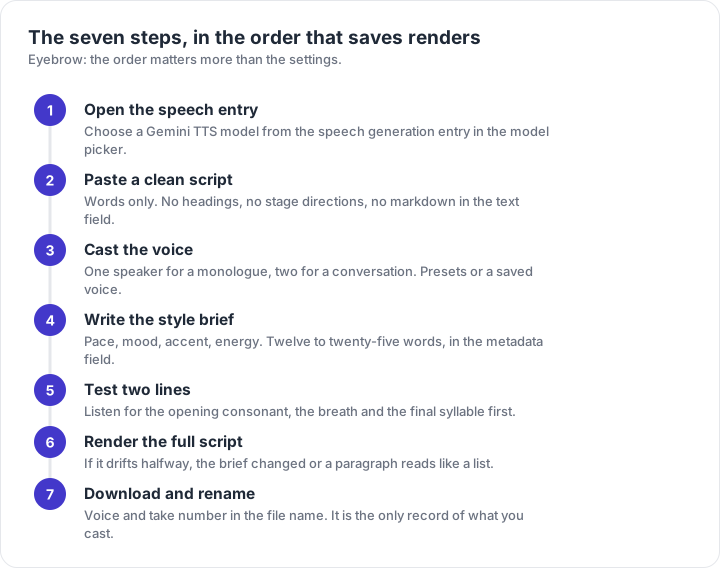
- Open AI Studio and choose a Gemini TTS model from the speech generation entry. Flash is the fidelity model, Flash-Lite is the fast one; both speak the same script language.
- Paste the script into the text field. Keep it to the words you want spoken — no director notes, no bracketed asides.
- Cast the voice. One speaker for a monologue, two for a conversation. Pick from the 30 presets, or type the name of a voice you already saved.
- Write the style brief in the speech metadata field. Pace, mood, accent, energy. Twelve to twenty-five words is usually enough; a paragraph of description tends to blur.
- Generate a short test: the first two lines only. Listen for the opening consonant, the breath and the final syllable before you spend a full render.
- Generate the full script once the test sounds right. If it drifts halfway through, the cause is almost always a change of brief or a paragraph that reads like a list.
- Download the WAV. Rename it with the voice and the take number before you leave the page, because the file name is the only record of what you cast.
What each control actually changes
The playground looks busier than it is. Six controls decide almost everything about the result, and the rest are convenience.
| Control | What it changes | What to do with it |
|---|---|---|
| Model | How much acting the voice will attempt, and how fast the render returns | Flash for character work, Flash-Lite for bulk and iteration |
| Speaker count | Whether the model casts one voice or two in the same request | Two for interviews and dialogue, one for everything else |
| Voice | Timbre, age impression and default energy | Pick for timbre first; energy is the style field's job |
| Style brief | Pace, mood, accent, energy, delivery notes | Short, concrete, and identical across chunks of one project |
| Transcript | Exactly the words that will be spoken | No stage directions, no headings, no markdown |
| Inline tags | Small vocal events inside a line: pauses, laughs, breaths | Sparingly, and only where a human would actually do it |
One speaker or two: the decision that shapes the script
A single request supports up to two speakers, and that ceiling drives how you write. One speaker means a monologue: narration, a course module, an ad read. Two speakers means you can build a host-and-guest rhythm without editing two files together, but it also means every line needs a speaker label and the model has to keep two timbres apart for the length of the scene.
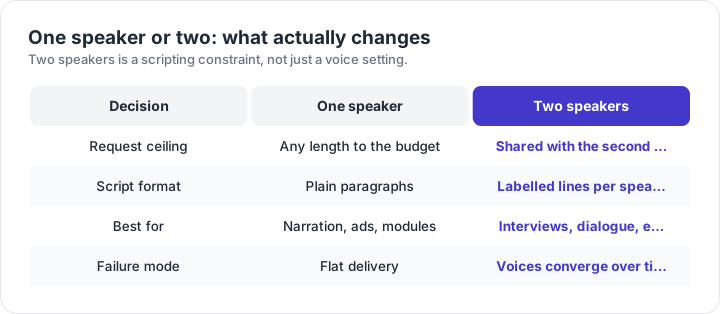
For a two-speaker scene, write the transcript as labelled lines, then describe both deliveries in one style brief. Keep the scene under a few minutes of speech. Beyond that, the second voice tends to soften toward the first, and fixing it after the fact costs more than generating two separate takes.
Scripts longer than one request
The 3.8 generation accepts up to 8K input tokens and returns up to 64K output tokens of audio. That covers a long chapter, but a single long render is a single point of failure: one odd paragraph and you regenerate the whole thing. Chunk at natural boundaries instead.
- Split at scene or section breaks, never mid-sentence and never mid-list.
- Repeat the same voice and the same style brief verbatim for every chunk.
- Generate one overlapping sentence at the tail of each chunk so you can cross-fade the joins in an editor.
- Name files with the section number and the take, then keep a single notes file with the brief you used.
Exporting and checking the file
The default download is a WAV with a 44-byte RIFF header, 24 kHz sample rate, 16-bit mono. That is a sensible mastering source: it opens in Audacity, Reaper, Premiere and Resolve, and it survives conversion to MP3 or AAC without the artefacts you get from transcoding twice. Convert once, at the end, for whatever your host accepts.
- Check the first 200 milliseconds for a clipped consonant or an audible click.
- Listen once on laptop speakers and once on earbuds — the two worst-case playback paths.
- Confirm the file duration matches the script; a short file usually means the render was cut off rather than the script was short.
- Keep the raw WAV. Editors are forgiving, but a re-encode from a lossy source is not.
First-run mistakes worth avoiding
- Stage directions in the transcript — the model reads them out loud.
- A style brief that describes the audience instead of the delivery.
- Choosing a voice by its name instead of auditioning one line first.
- Generating a 20-minute script before testing two lines.
- Editing the brief between chunks and then wondering why the voice drifts.
- Exporting to a lossy format before editing.
Frequently asked questions
Where do I find text to speech in Google AI Studio?
Open AI Studio and look for the speech generation entry in the model picker, then choose a Gemini TTS model. The playground layout changes from time to time, so if the entry is not where you expect, search the model list for "TTS" rather than hunting through menus.
Why does the model read my acting notes out loud?
Because in the 3.8 generation the transcript is treated as a verbatim script. Anything you type in the text field is meant to be spoken, including stage directions. Move those directions into the style field in the speech metadata, and keep only the words you want to hear.
Can I generate two voices in one request?
Yes, up to two speakers in a single request. Each speaker gets its own voice and its own lines in the transcript. Three or more speakers means multiple requests and a edit in your audio editor, which is usually still faster than trying to fake it.
What file do I get, and can I edit it?
The default output is a WAV file with a standard 44-byte RIFF header at 24 kHz, 16-bit mono. That opens in every editor worth using: Audacity, Reaper, Premiere, DaVinci Resolve. If you need MP3 for a podcast host, convert after you finish editing, not before.
How do I keep a long script from drifting?
Split at scene or section boundaries rather than at a fixed word count, keep the same voice and the same style brief for every chunk, and generate a short overlap sentence you can cross-fade. Drift almost always comes from changing the brief between chunks.
Does the voice stay identical between sessions?
A preset voice does, because it is the same model voice every time. A custom voice depends on how you saved it and how long ago: saved voices carry a one-year lifetime, and stateless voice keys last seven days. Check which one you used before you build a series around it.